When Epic Games Gaming Sessions Suddenly Crash Your Fun
Long gaming sessions are supposed to be relaxing, not frustrating. You sit down, launch your favorite title, everything feels smooth for an hour or two, and then it hits: a freeze, a huge stutter, or a sudden crash to desktop with no warning at all. The first time, you shrug it off. The third or fourth time, you start wondering if your PC is trying to betray you.
As a gaming PC shop, we see this pattern all the time. Long-session crashes are different from instant startup crashes. If a game dies right away, it often points to obvious hardware faults or missing software. But when problems only appear after extended play, the cause is usually slower, like heat building up, memory issues, or software conflicts that show up only under pressure. In this article, we will walk through the most common reasons your gaming PC gives up mid-session, what you can safely check at home, and when it is smarter to bring it to a local expert such as a Gaming PC Bahrain specialist for deeper diagnostics.
Heat Buildup and Dust, Silent Killers of Stability
During long sessions, your CPU and GPU work at high load for hours. In a warm climate, that means the inside of your case can slowly turn into an oven. At first, everything is fine, then temperatures creep up, your parts start thermal throttling, and eventually the system freezes or shuts down to protect itself.
Some of the most common cooling problems we see include:
- Fans and heatsinks clogged with dust
- Poor case airflow, with hot air trapped inside
- Dried or badly applied thermal paste on CPU or GPU
- Cheap or tiny cases with limited ventilation
You can often spot heat-related crashes by a few telltale signs. Your fans may suddenly ramp to high speed and stay loud. The side of the case can feel very hot to the touch. You may notice frame rates dropping or the game feeling sluggish right before a freeze or restart. After the crash, if the PC behaves better once it has cooled for a while, that is another clue.
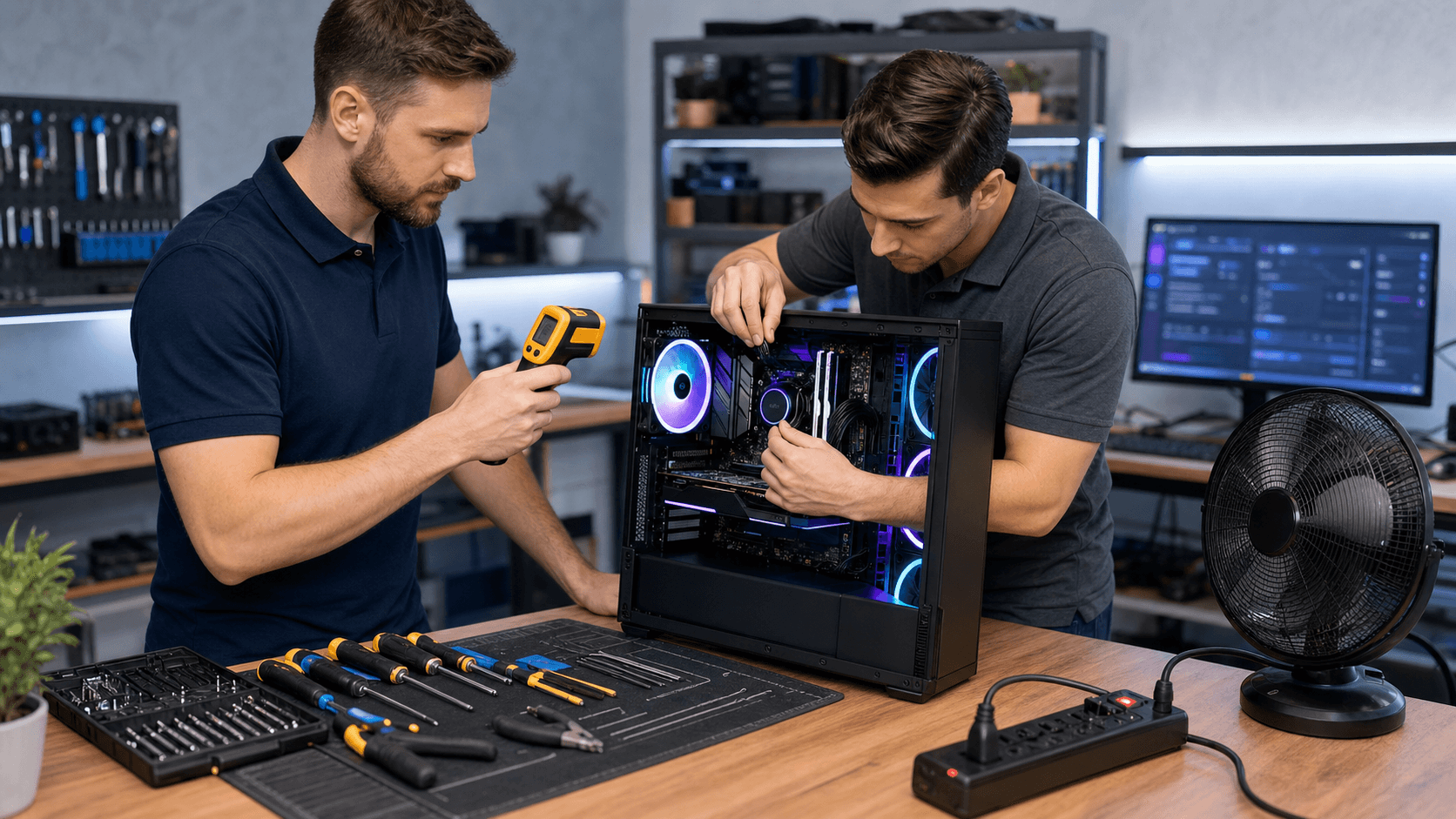
Basic steps at home include cleaning visible dust with compressed air, making sure intake and exhaust fans are not obstructed, and checking that your case is not pushed tight against a wall. Professional cleaning and fresh thermal paste make a big difference, which is why shops like Games Gravity offer dedicated cleaning services for gaming PCs and even consoles to restore proper airflow.
Power-Supply, Cables, and Wall Power Problems
Extended gaming sessions also put steady, high demand on your power supply. Browsing the web or watching videos barely stresses the PSU, but a demanding game will pull near-maximum power for hours and expose weaknesses that never show up in light use.
Typical PSU and power-related problems include:
- Low-quality or underpowered power supplies
- Aging PSUs with unstable voltages
- Overloaded power strips and cheap extension cords
- Loose power cables inside the case or at the wall
When power delivery is marginal, you might see random black-screen restarts, instant shutdowns in the middle of a game, or crashes that only happen with graphically heavy titles. Sometimes there can even be a faint electrical or burning smell, which is a major red flag to stop gaming immediately.
Because working inside the power area carries some risk, a Gaming PC Bahrain technician is often the safest person to test PSU output, check all cabling, and confirm whether you need a better-rated replacement instead of guessing.
RAM, Storage, and Game File Corruption Under Pressure
Long sessions keep your RAM filled and your storage active, which can bring out problems that never appear during short tests. A stick of RAM that is slightly unstable or a drive with a few weak sectors may seem fine during everyday use, then cause errors once the game has been running for hours.
RAM-related clues usually look like:
- Crashes after a few hours of play, not at launch
- Blue screens that mention memory or similar error codes
- Games closing to desktop without a clear error message
Storage can also be part of the problem. Overheating SSDs or HDDs can slow down or throw read errors. Drives that are nearly full leave little room for temporary files, which can increase stutters and crash risk. Corrupted game files are another common culprit, especially after unexpected shutdowns. Outdated drivers for chipset, GPU, or storage controllers can also conflict with newer titles.
Some simple checks you can try:
- Run memory diagnostics through your operating system
- Use your game launcher to verify or repair game files
- Free up space on your main game drive
- Install current motherboard, GPU, and storage drivers
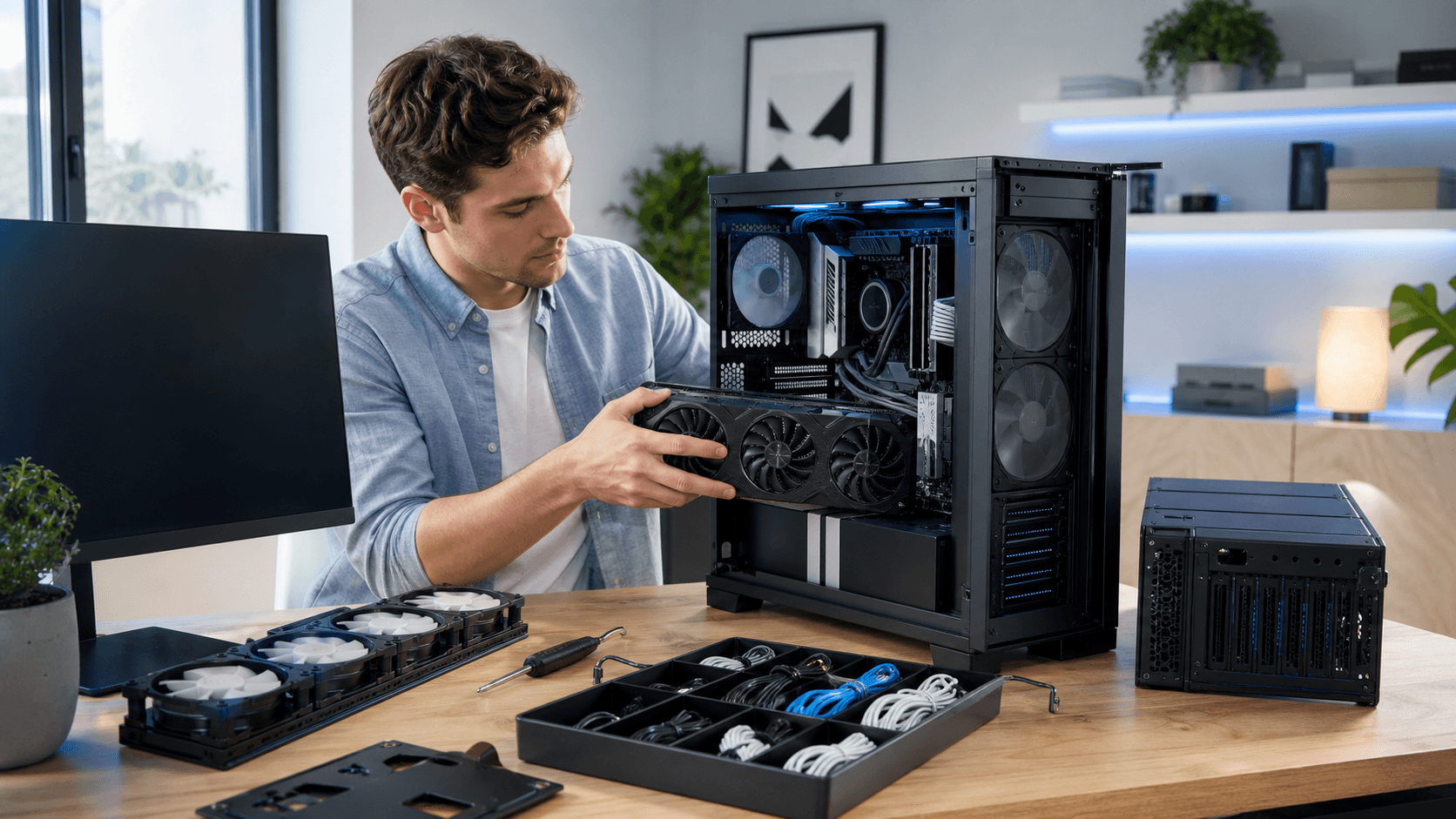
If you are building a new system or thinking of upgrading, browsing quality parts through a dedicated PC store such as the PC builds section of a gaming-focused retailer can help you avoid flaky RAM or bargain drives that cause headaches later.
Software Conflicts, Background Apps, and Overclocks
Not every long-session crash comes from hardware. Software can slowly eat resources or clash in weird ways. RGB controllers, screen overlays, recording tools, browser tabs, chat apps, and antivirus scans can all add up. After hours, your system may simply run out of stable room to work with.
Overclocks are another big factor. A CPU, GPU, or RAM overclock that looks stable in a short benchmark can fall apart after extended heat and load. The system might run great for an hour, then suddenly hard crash once the temperatures and voltage fluctuations have bounced around long enough.
You can also run into:
- Outdated Windows builds that do not play nicely with new drivers
- Buggy driver releases that cause crashes after long uptime
- Conflicts between multiple overlay or monitoring tools
Practical steps you can take at home:
- Disable unnecessary startup apps to free RAM and CPU
- Test your game with recording tools, overlays, and RGB software turned off
- Revert CPU, GPU, and RAM to their default clock speeds
- Update drivers one at a time, or roll back a recent update that coincided with new crashes
If your system behaves perfectly at stock settings but not when overclocked, you have likely found the cause.
When to Visit a Local Expert and Protect Future Sessions
By this point, you can probably match your crashes to one or two patterns. Do they line up with high temperatures and loud fans? That points to cooling issues. Do they only appear in the heaviest games or after the graphics card ramps up? That could be power supply or GPU-related. Are they tied to blue screens, file errors, or long uptimes? Memory, storage, and software are strong suspects.
A simple rule: if the fix involves cleaning, basic cable checks, or software changes, it is usually safe to try at home. If you smell burning, see visible damage, or suspect the PSU, it is better to stop and let a professional handle deeper testing. Persistent crashes, especially those that happen under heavy load, are your system asking for help, and ignoring them can shorten the life of expensive parts.
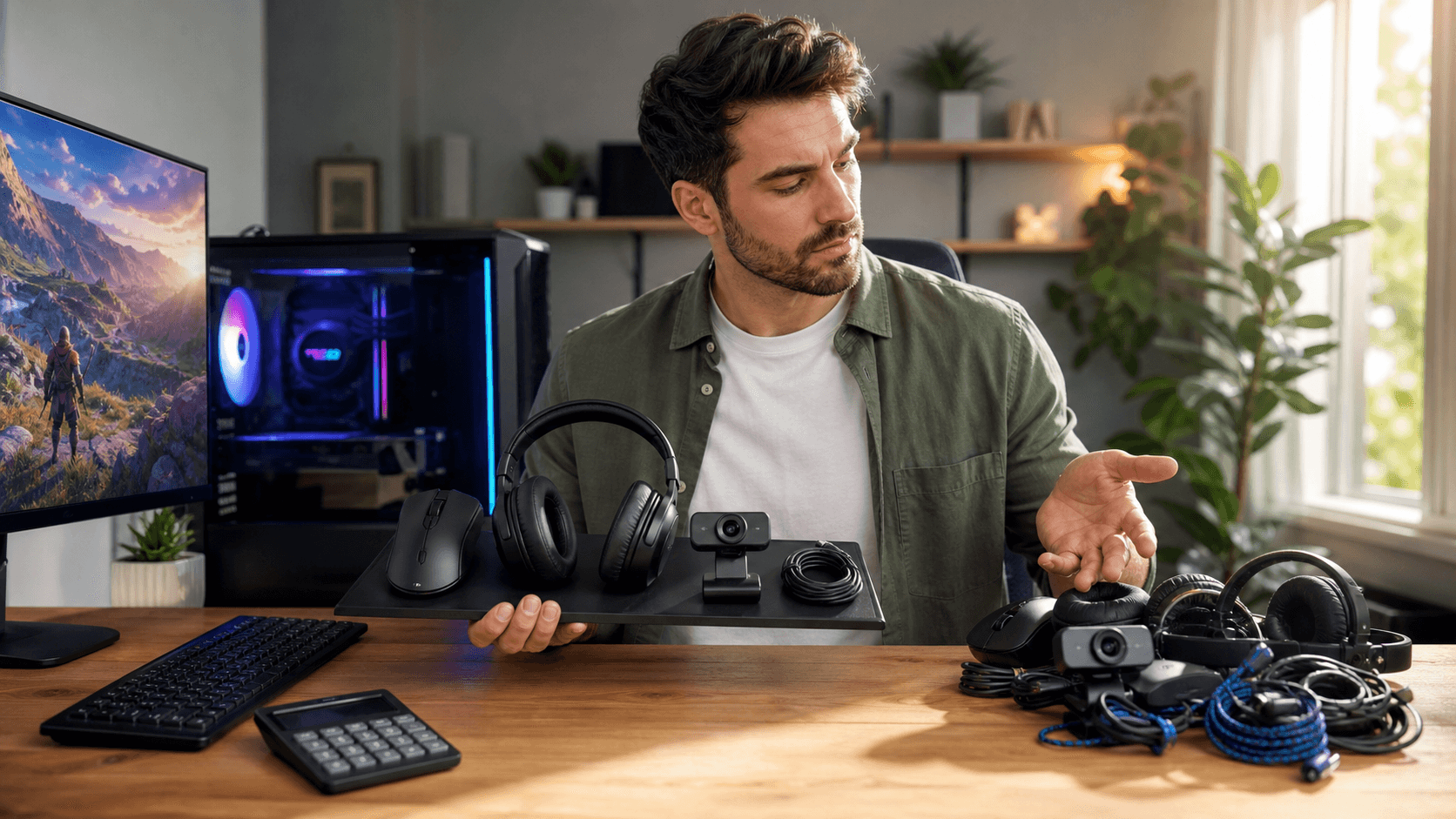
For gamers in Bahrain, a dedicated gaming PC shop like Games Gravity can help with thorough cleanings, fresh thermal paste, component diagnostics, and stability-focused custom builds designed specifically for long gaming sessions. Even small upgrades, like better case airflow or a more reliable PSU, can keep your next marathon run smooth, while a simple accessory upgrade such as a quality gaming mouse can round out the experience. Treating your system proactively with periodic cleaning and health checks keeps those late-night sessions focused on winning, not wondering when the next crash will hit.
Build Your Ultimate Gaming Rig With Confidence
If you are ready to level up your setup, our team at Games Gravity is here to help you choose and customize the perfect components for your play style and budget at our gaming PC shop. We take the time to understand what you play, how you play, and what kind of performance you expect so your build feels tailored to you. Have questions about specs, upgrades, or next steps for your build? Just contact us and we will walk you through every detail.