When High Specs Do Not Equal High FPS
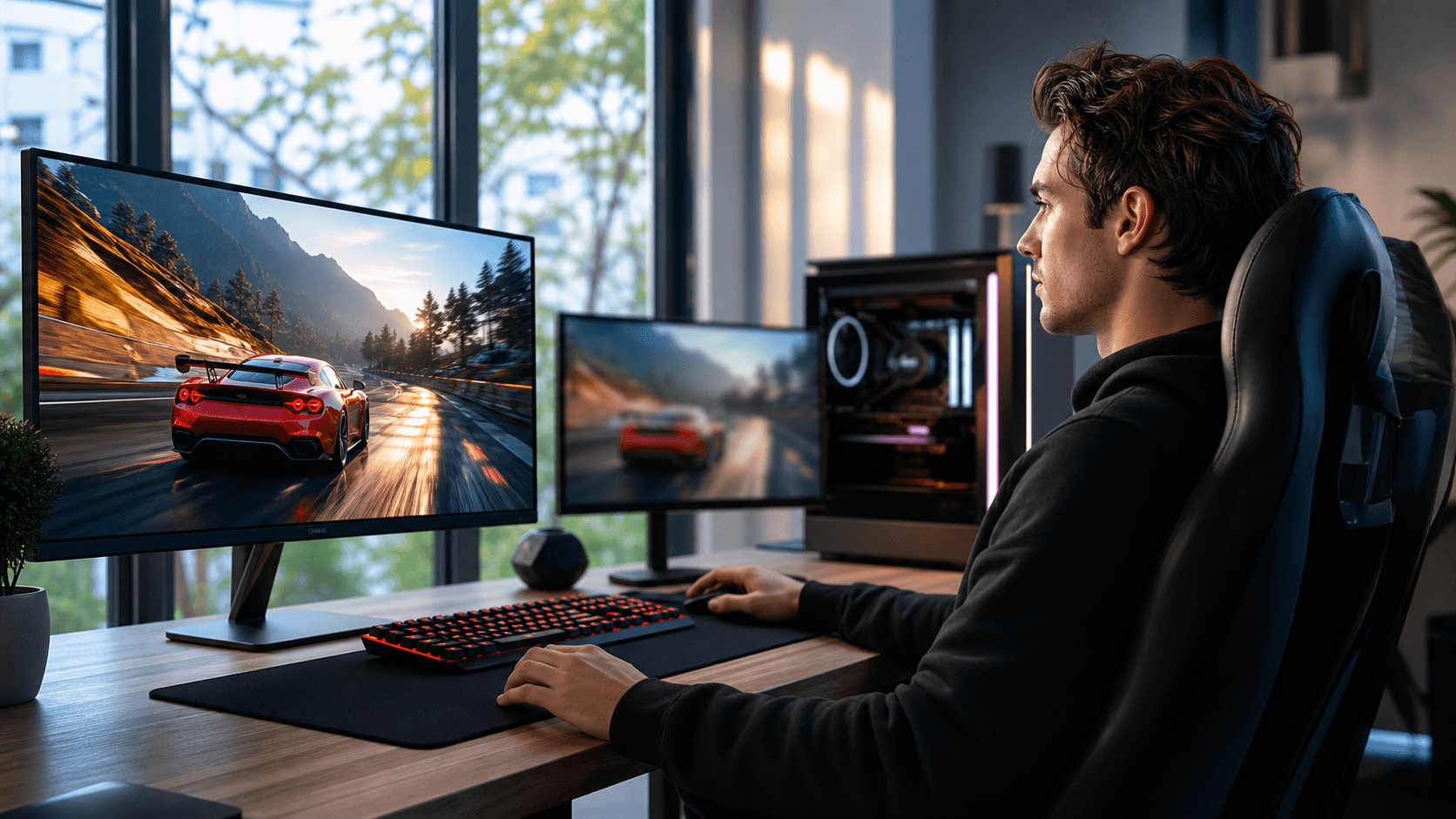
A powerful gaming PC should feel smooth, fast, and responsive, so sudden stutters and frame drops are especially annoying. You look at your parts list, see a strong graphics card and a recent processor, yet your game still hitches when the action gets intense. That disconnect between what you paid for and what you see on screen is what we want to fix. In this article, we will break down why high-end components do not always translate into high, stable FPS and what you can do about it.
Frame rate is the number of frames your PC sends to your monitor each second, and consistent FPS is what makes aiming, camera movement, and fast reactions feel natural. Modern games do not just hammer your graphics card, they also stress the CPU, RAM, storage, cooling system, and even your internet connection. At Games Gravity, we work with local gamers in Bahrain to track down the exact cause of those frustrating drops, from in-store diagnostics to full rebuilds, so your hardware finally performs the way it should.
Hidden Hardware Bottlenecks That Kill Smooth Gameplay
One of the most common issues we see is a mismatch between CPU and GPU power. If you pair a strong GPU with a mid-range or older CPU, you can end up CPU-bound, where the processor cannot keep up with the number of frames the graphics card wants to render. The reverse can also happen, where a powerful CPU sits mostly idle while an entry-level GPU struggles, leaving your FPS lower than expected. Different games lean harder on different parts, so a system that flies in one title might crawl in another.
RAM and storage can silently sabotage smooth play as well. Too little RAM, slow memory speeds, or running in single-channel mode can cause hitching, delayed texture loading, and long alt-tab times. Installing large games on a hard drive instead of an SSD adds extra waiting to every map load and can cause micro-stutters in open-world or online titles that are constantly streaming new assets.
Cooling is another hidden performance killer. Dust buildup, tight case layouts with poor airflow, and dry thermal paste can push temperatures higher than your components can comfortably handle. When they get hot enough, they throttle, meaning they automatically slow down to avoid damage. A quick physical inspection and thermal checks at a local gaming PC shop can reveal problems that do not show up in software alone.
Software, Drivers, and Background Apps Dragging You Down
Even with balanced hardware, software can pull your FPS down. Outdated GPU drivers are a classic example, since game updates often rely on driver optimizations to run correctly. Chipset drivers and BIOS versions matter as well, especially for new processors and motherboards that are still getting stability improvements. If your system falls back to generic Windows drivers for things like the GPU or storage controller, you are leaving performance on the table.
Background apps quietly eating up resources can be just as damaging. Web browsers with many tabs open, streaming or recording tools, RGB control suites, chat overlays, and multiple launchers all use CPU time, RAM, and storage bandwidth. Features like the Windows Game Bar, Discord overlay, and other in-game overlays can stack on top of each other and cost several frames without you noticing.
On top of that, power settings can limit your performance even on a desktop. A system set to a balanced or power-saving plan might hold your CPU at lower speeds, reduce GPU power limits, or keep fans spinning too slowly. On gaming laptops, battery mode and aggressive power saving can cut performance drastically, so it is important to check your power plan when troubleshooting.
Game Settings, Resolution, and Engine Limits
Graphics settings themselves can easily overload a strong PC. Options like ultra-quality shadows, very high ambient occlusion, heavy anti-aliasing, and real-time ray tracing put a big load on the GPU. Running all of that at a high resolution pushes even more pixels every frame, so it is important to balance visuals with the refresh rate of your monitor. Upscaling technologies such as DLSS, FSR, or XeSS can help, but only if they are configured correctly for your setup.
Some problems are baked into the game engine or its optimization. Certain titles are known to be heavily CPU-bound or to have shader compilation stutter, especially the first time you load into a map or area. Online games add another layer, where desync or server hitching can feel like a frame drop even though your PC is fine.
Sync settings are another common source of confusion. V-Sync, G-Sync, FreeSync, frame caps, and driver-level limits can all interact in strange ways. If your frame rate hovers just below your monitor refresh rate, you can see micro-stutter or input delay. Tuning these settings so that your actual FPS lines up with your display capabilities is one of the easiest ways to make gameplay feel smoother without touching your hardware.
Local Factors: Internet, Power, and Real-World Conditions
For online titles, it is important to separate low FPS from lag. FPS is handled by your PC, while lag is about your connection quality, including ping, packet loss, and jitter. Choppy movement, rubber-banding, or delayed shots are usually a sign of network issues, not weak hardware. Monitoring both your in-game FPS counter and your connection stats helps you understand which side of the equation needs attention.
Power quality and wiring can also affect stability. A low-quality power supply, loose power cables, or overloaded power strips can lead to random shutdowns, sudden slowdowns when the system pulls more power, or strange crashes under load. In a hot climate like Bahrain, consistent power and reliable cooling become even more important, because your PC is already fighting higher ambient temperatures.
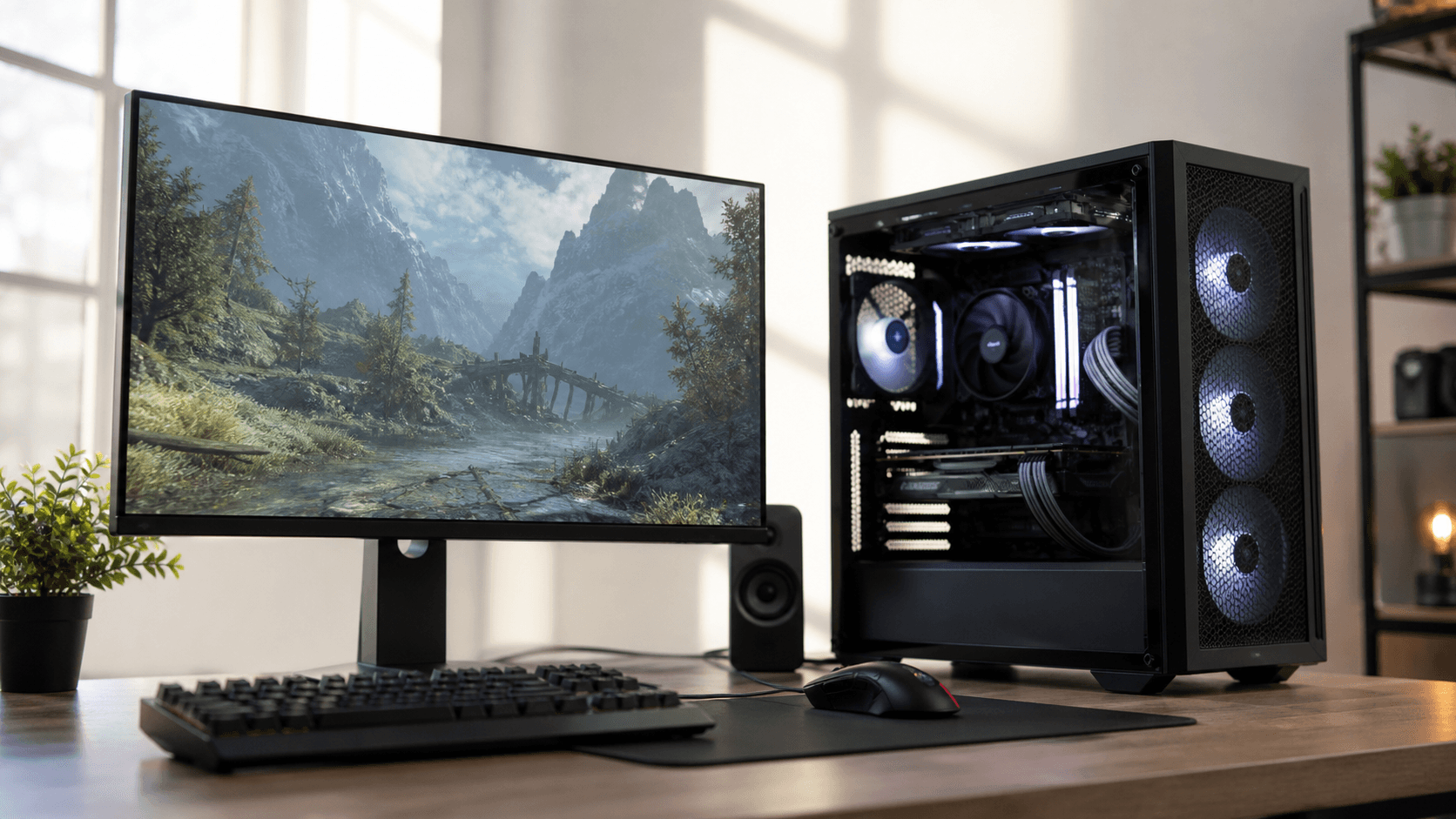
Heat and dust from the local environment build up over time in cases, fans, and heatsinks. That buildup restricts airflow and keeps hot air trapped inside your system. Regular internal cleaning, checking fan curves, and replacing thermal paste when needed can prevent the kind of temperature spikes that cause mid-game throttling. A Gaming PC Bahrain setup that gets periodic maintenance almost always feels faster and more stable than a neglected one built from the same components.
Turning Frame Drops Into an Upgrade Plan
The best way to tackle frame drops is with a clear, step-by-step mindset:
- Start by monitoring your temperatures, CPU and GPU usage, and FPS, then change only one thing at a time.
- Update your GPU drivers, close background apps, or lower one heavy setting such as shadows or ray tracing, then test again.
- Use free monitoring tools to learn what "normal" looks like for your PC, so it is easier to spot unusual behavior.
When you can see which part of your system is maxed out, it becomes easier to plan upgrades. If your GPU is at 99 percent in most games but your CPU is not, a graphics card upgrade or higher-refresh monitor might make sense. If your RAM is always close to full, more memory or a switch to dual-channel can help. Browsing options in the PC builds section or checking specialized gear such as a new gaming mouse can also refine your overall setup and reduce input-related issues.
There comes a point where professional diagnostics save time and frustration. Frequent crashes under load, constant overheating, loud fans at low usage, or big FPS drops that do not respond to settings changes hint at deeper hardware or installation problems. At that stage, having experienced technicians open the case, check airflow, test components individually, and compare your results to a known-good system can uncover things that software alone cannot. A focused approach like this turns random stutters into a clear plan for cleaning, tuning, and, if needed, upgrading through a trusted local source such as Games Gravity.
Power Up Your Next Gaming Upgrade With Expert Help
If you are ready to level up your setup, our team at Games Gravity is here to help you choose and build the right rig for your goals. Start exploring performance-focused parts and custom configurations at our gaming PC shop and see what fits your playstyle and budget. If you want tailored recommendations or have questions before you buy, just contact us and we will walk you through every step.