When Your Gaming Rig Takes Ages to Start Up
Waiting through a painfully long boot before you can queue for a match or start a work task is more than just annoying; it is your PC telling you something is wrong. Slow startup is rarely about one single faulty part or one bad setting. It usually means a mix of hardware strain, software clutter, and skipped maintenance is catching up with your system.
At Games Gravity, we work on gaming PCs every day here in Bahrain, and slow boot times are one of the most common complaints. Once we start checking, we often find several small issues stacked together, from tired hard drives to overloaded startup apps. In this guide, we will break down what is really happening when your PC boots, what you can safely try on your own, and when it is smart to hand things over to a professional computer repair shop in Bahrain that understands gaming hardware.
How Your PC Actually Starts Up Behind the Scenes
When you press the power button, a lot happens before your desktop appears. Breaking it into stages makes it easier to understand where delays might be coming from.
Here is the basic boot sequence in simple terms:
- Power on and hardware checks , the system gets power and your motherboard quickly checks CPU, RAM, and connected drives.
- BIOS or UEFI screen , low-level firmware that decides which drive to boot from and passes control to your operating system.
- Operating system loading , Windows starts reading system files from your drive and prepares the login screen.
- Startup apps and services , after logging in, your background programs, drivers, RGB tools, and launchers all load.
Every stage can slow things down. An outdated BIOS can hang for a while before passing control to Windows. A failing or very slow drive can make the operating system load at a crawl. Corrupted system files or drivers can cause long black screens or spinning dots before the login appears. Then, once you sign in, a pile of startup apps can turn your desktop into a slideshow for several minutes.
Gaming setups often add extra pressure here. Game launchers, voice chat apps, RGB controllers, overclocking utilities, overlays, and recording tools all tend to start with Windows unless you tell them not to. When you understand that all of these pieces are part of the same chain, it becomes clearer why there is rarely one magic button to fix a slow PC Bahrain boot.
Common Hardware Culprits That Drag Boot Times Down
Hardware is often the biggest factor in how quickly a system goes from power button to desktop. Storage comes first on the list, because it has the most visible impact.
If you are still booting from an old mechanical hard drive, you will notice much slower load times compared to a solid-state drive. Other common storage issues include:
- Failing drives that click, grind, or randomly disappear.
- Drives that are nearly full, leaving Windows with no room to work.
- Cheap or very old SSDs starting to wear out.
Upgrading to a quality SSD is one of the best ways to speed up a gaming rig, and options are easy to explore in the PC builds section of our site for reference.
Memory and CPU also play a big role. If you do not have enough RAM, Windows constantly swaps data between memory and the drive, which becomes obvious during boot. A CPU that is throttling because of heat will also slow down everything.
Dust is a quiet enemy here. In our warm climate, fans pull in a lot of fine dust that collects on heatsinks and filters. Over time, that buildup leads to:
- Higher temperatures at idle and during boot.
- Fans needing to spin faster, making more noise.
- Throttling, where the CPU or GPU slows itself down to stay cool.
Power supply issues can cause longer boot times too. A weak or unstable PSU, or loose power cables to the motherboard or GPU, can trigger:
- Delayed startups where the system tries to power on multiple times.
- Sudden resets during the early stages of boot.
- Random freezes right before Windows loads.
A professional workshop that focuses on PC Bahrain systems can quickly test your drives, RAM, and thermals, so failures are caught before they turn into data loss.
Software, Startup Apps, and Hidden System Conflicts
Even with solid hardware, your PC can still crawl at startup if the software side is messy. Many gamers load their rigs with utilities, and a lot of them quietly add themselves to the startup list.
Typical startup offenders include:
- Game launchers and stores.
- Chat and streaming tools.
- RGB and fan control utilities.
- Cloud sync apps.
- Multiple antivirus or security programs.
When all of these try to open at once after you log in, the result is a desktop that looks ready but is not actually usable for several minutes. On top of that, you can run into system-level issues such as outdated drivers, Windows updates that did not complete properly, or corrupted system files causing delays.
Malware and unwanted programs are another hidden source of trouble. Gaming PCs often see a lot of downloads, mods, and free tools. If even one of them contains suspicious software that runs at startup, it can drag down performance or fight with your security tools.
There are a few safe DIY steps most users can try:
- Open Task Manager and review your startup apps; disable anything you do not truly need at boot.
- Run a full antivirus scan.
- Update your GPU and chipset drivers from trusted sources.
- Run basic Windows tools to check for corrupted files.
If the system still hangs, blue screens, or restarts during boot, that is usually a sign that deeper system repair is needed and it is safer to rely on professional computer repair in Bahrain instead of guessing.
When Slow Boot Times Mean Your PC Needs a Deep Clean
Sometimes the problem is not inside Windows at all; it is inside the case. Dust, heat, and aging thermal paste can all make your PC unstable and slow to start. This is especially relevant here, where high ambient temperatures put extra stress on components that are already running hot.
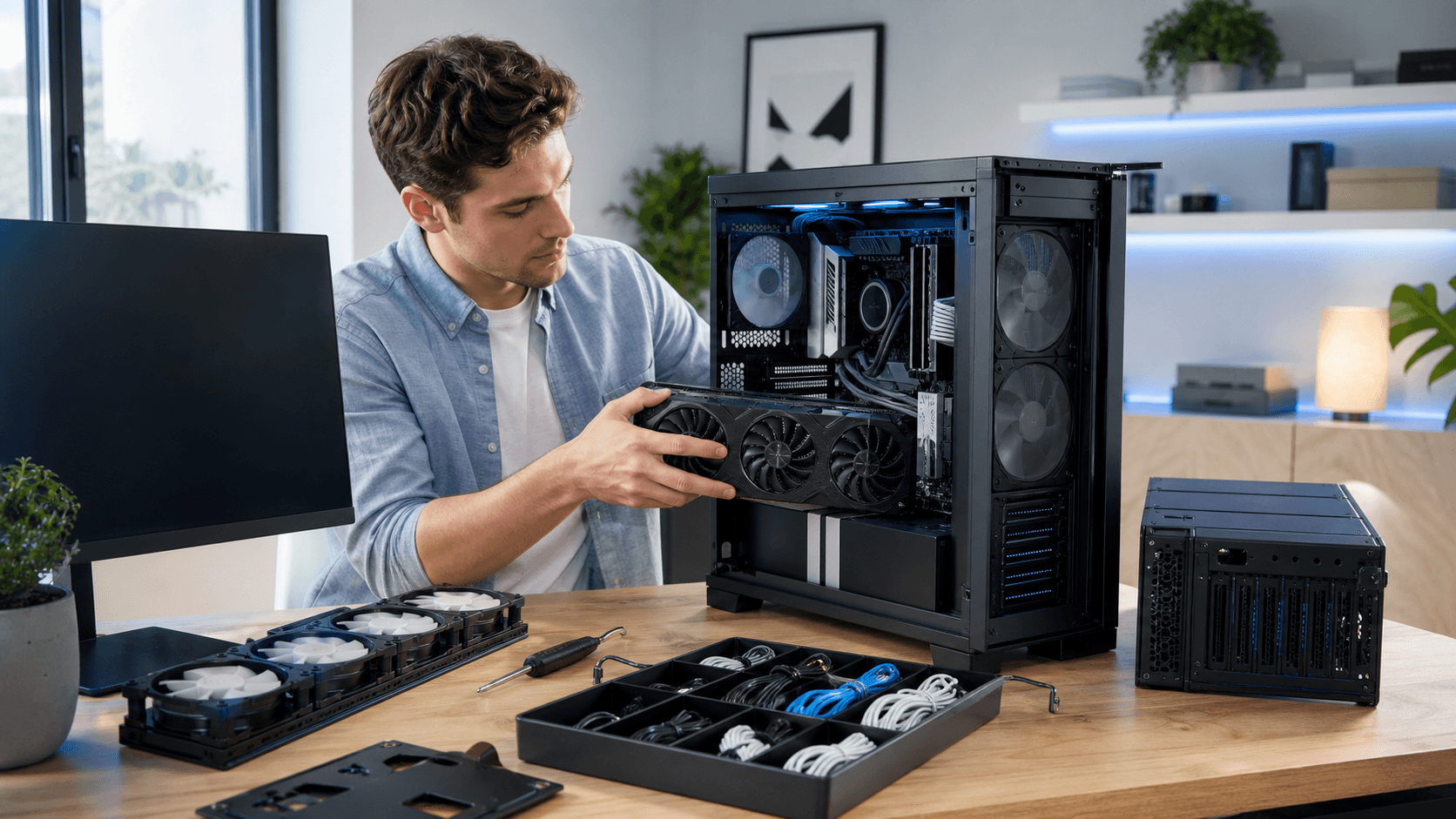
A deep clean for a gaming PC generally includes:
- Removing dust from fans, filters, and heatsinks.
- Replacing dried or poorly applied thermal paste on the CPU.
- Checking airflow and cable management to keep hot air moving out.
- Inspecting ports and connectors for physical damage.
Good cooling starts with the basics, but quality coolers help too. Even something as simple as upgrading to a better CPU cooler, like the options in our CPU cooler category, can reduce thermal throttling at boot and under load.
Laptops and small-form-factor PCs have their own challenges. Blocked vents, worn batteries, and damaged chargers or power jacks can all cause weird behavior when you try to start the device. They might power on for a second, shut off, then try again, or hang on a black screen until they cool down.
Regular cleaning is not just about looks. Keeping dust under control, renewing thermal paste when needed, and making sure fans and coolers are working properly can extend the life of your hardware and keep your boot times consistent across long gaming seasons.
From Slow Starts to Smooth Gaming Sessions
By the time a PC is taking minutes to reach a usable desktop, it is almost never a single simple cause. Slow boots usually come from a combination of aging or overloaded hardware, a crowded and conflicted software setup, and a lack of routine cleaning.
Here is a quick checklist of safe steps you can try on your own:
- Free up disk space so your system drive is not close to full.
- Review and trim your startup apps in Task Manager.
- Run antivirus and basic system health scans.
- Listen for odd drive noises or watch for drives that randomly disappear.
- Keep your case, filters, and fans free of heavy dust.
If boot times keep getting longer or you start seeing random restarts, freezes, or update loops, those are signs that something deeper is wrong. At that point, it is better to get a thorough diagnostic on your gaming PC from a shop that works with performance builds every day. A team that understands how to balance components, like the one behind the Games Gravity store, can help you track down the real causes and decide whether you need repair, tuning, or a partial rebuild so your system is ready for gaming, work, and streaming without the long wait at startup.
Get Fast, Reliable Computer Repair Today
If your system is slowing you down, our team at Games Gravity is ready to help with expert computer repair in Bahrain. We diagnose issues quickly so you can get back to work, gaming, or studying with minimal downtime. Reach out to us today through our contact page, and we will respond promptly with the support you need.